How to Install Custom Watch Faces on Any Smartwatch (2026)
Learn how to install custom watch faces on Apple Watch, Samsung Galaxy Watch, Garmin and Wear OS with our easy step-by-step guide.
One of the easiest ways to make your smartwatch feel brand new is by changing its watch face.
Whether you own an Apple Watch, Samsung Galaxy Watch, Garmin, Google Pixel Watch, OnePlus Watch, TicWatch or another Wear OS device, custom watch faces let you personalise your watch to match your style, profession or daily routine.
The best part? Many excellent watch faces are completely free.
In this guide, we will show you exactly how to install watch faces on every major smartwatch platform.
Before you start
Before downloading a watch face, make sure:
- Your smartwatch is paired with your phone
- Bluetooth is enabled
- Your watch has at least 30% battery
- The companion app is updated
- Your watch has an internet connection (Wi-Fi or Bluetooth sync)
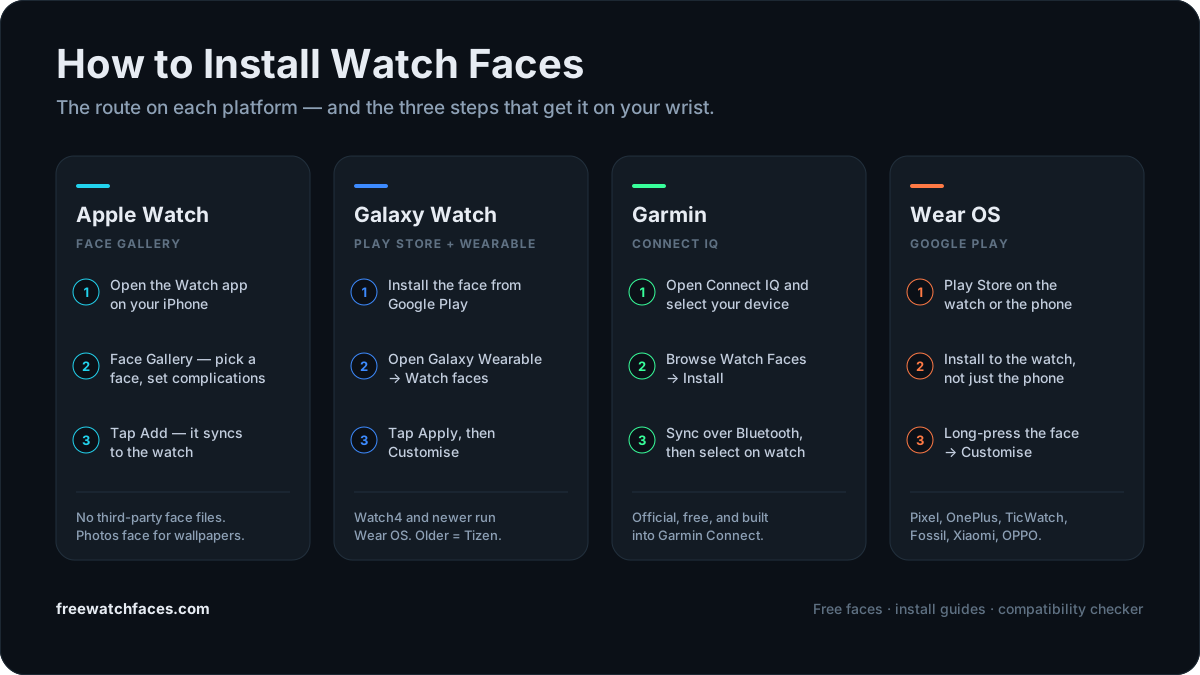
How to install watch faces on Apple Watch
Apple Watch offers one of the easiest ways to customise your watch.
Method 1: Using the Watch app (recommended)
- 1.Open the Watch app on your iPhone.
- 2.Tap Face Gallery.
- 3.Browse the available watch faces.
- 4.Customise colours, complications and style.
- 5.Tap Add — the face syncs automatically.
Method 2: Install from the App Store
Many third-party apps offer custom designs.
- 1.Open the App Store and search for watch face apps.
- 2.Install your preferred app and open it.
- 3.Select a design and tap Add to Apple Watch.
Bear in mind that watchOS only runs Apple’s own face templates, so these apps supply wallpapers, configurations and complications rather than a complete replacement face. The Apple Watch setup guide explains the distinction, and our 25 best free Apple Watch faces covers which built-in faces are worth your time.
Method 3: Share watch faces
Apple also lets users share a configured face. Tap the shared file, open it on your iPhone, then tap Add. Done.
How to install watch faces on Samsung Galaxy Watch
Samsung watches use Galaxy Wearable and, on newer Wear OS models, the Google Play Store.
Using Galaxy Wearable
- 1.Open Galaxy Wearable.
- 2.Tap Watch faces.
- 3.Browse the free designs.
- 4.Tap your favourite.
- 5.Press Apply.
Using the Google Play Store
- 1.Open the Google Play Store.
- 2.Search for watch faces.
- 3.Install the watch face — choosing your watch as the target device.
- 4.Open Galaxy Wearable.
- 5.Apply the installed design.
Some developers also provide custom files that need their own companion app: install the app, follow the developer’s instructions, then apply the face from Galaxy Wearable. For designs worth starting with, see the 18 best free Samsung Galaxy Watch faces.
How to install Garmin watch faces
Garmin watches use the Connect IQ store, which is official, free and built into Garmin Connect.
- 1.Install Garmin Connect IQ.
- 2.Sign in.
- 3.Select your watch.
- 4.Browse Watch Faces.
- 5.Choose a design.
- 6.Tap Install.
- 7.Sync your watch.
Within a few seconds your new watch face appears. Full detail is in the Garmin install guide, and the best free Garmin faces are a good place to browse.
How to install watch faces on Wear OS
This covers the Google Pixel Watch, OnePlus Watch, TicWatch, Fossil Gen series, Xiaomi Watch and OPPO Watch.
- 1.Open the Google Play Store — on the watch or on your phone.
- 2.Search for a watch face.
- 3.Check the supported devices, then tap Install.
- 4.Make sure the watch is the install target, not just the phone.
- 5.Long-press the current face on the watch and apply the new one.
Installing directly from the watch is usually easiest, because Play can recognise the connected device. See the Wear OS install guide or the Wear OS faces that are actually free.
How to change the watch face on the watch itself
Every platform also lets you switch faces without touching your phone.
| Platform | On the watch |
|---|---|
| Apple Watch | Touch and hold the face, swipe, then tap the one you want |
| Samsung Galaxy Watch | Touch and hold the screen, swipe left or right, tap to select |
| Garmin | Long-press, choose Watch Face, apply |
| Wear OS | Long-press, tap Customise, apply |
How to delete watch faces
Installed too many? Removing the ones you never use keeps the list quick to scroll.
| Platform | Where to remove it |
|---|---|
| Apple Watch | Watch app → My Faces → Remove |
| Samsung Galaxy Watch | Galaxy Wearable → Watch faces → Delete |
| Garmin | Connect IQ → My Devices → Uninstall |
| Wear OS | Companion app → installed faces → Remove |
Troubleshooting installation problems
The watch face is not appearing
Restart the watch, reconnect Bluetooth and sync again. On Wear OS, confirm the face installed to the watch rather than the phone.
Installation failed
Check your storage space, internet connection and whether the companion app needs an update. It is also worth confirming the face supports your exact model with the compatibility checker.
The watch face keeps crashing
Remove it, restart the watch, then install the latest version.
The battery is draining quickly
Some animated faces consume noticeably more power. Switching to a simpler AMOLED-friendly design or a minimal one usually fixes it — there is more on this in our watch face battery guide.
Best practices
- Keep only the watch faces you actually use
- Update companion apps regularly
- Download from trusted developers and official stores
- Choose battery-friendly designs if battery life matters to you
- Back up favourite watch faces where the platform allows it
Final thoughts
Installing a custom watch face is one of the simplest ways to personalise your smartwatch. Whether you use an Apple Watch, Samsung Galaxy Watch, Garmin or any Wear OS device, the process usually takes just a few minutes.
Experiment with different styles, choose a design that matches your lifestyle, and do not be afraid to switch between minimalist, fitness-focused and premium looks.
Frequently asked questions
- Can I install custom watch faces for free?
- Yes. Every major smartwatch platform offers free watch faces, and many third-party developers also provide free options.
- Are custom watch faces safe?
- Yes, as long as they come from trusted sources or official app stores such as Google Play, Connect IQ or the App Store.
- Will custom watch faces slow down my watch?
- Most will not. However, highly animated or data-heavy designs may consume more battery and processing power.
- Which smartwatch supports the most watch faces?
- Wear OS and Samsung Galaxy Watch generally offer the widest variety through Google Play, while Garmin has a strong collection in Connect IQ. Apple Watch has a curated but more restricted ecosystem.
- Can I create my own watch face?
- Yes. Many platforms provide official tools or support third-party watch face designers, and you can make an image-based face for a photo dial in our watch face creator.