Watch Face Installed but Not Showing? How to Fix It (2026)
Your watch face says installed but never appears on the watch. Here is why — and the fixes that work on Wear OS, Galaxy Watch, Garmin, Amazfit and Huawei.
You installed a watch face. The store said it worked. You raised your wrist and it was not there.
This is one of the most common smartwatch complaints, and it is almost never a broken file. In most cases the face is sitting on your phone waiting to sync, or it is already on the watch waiting to be selected — or it was never compatible with your exact model in the first place.
Short answer: “Installed” only means the file reached your phone. It still has to sync to the watch, and on most platforms you then have to select it yourself. Check those two things before you uninstall anything.
Why “installed” does not mean “on your watch”
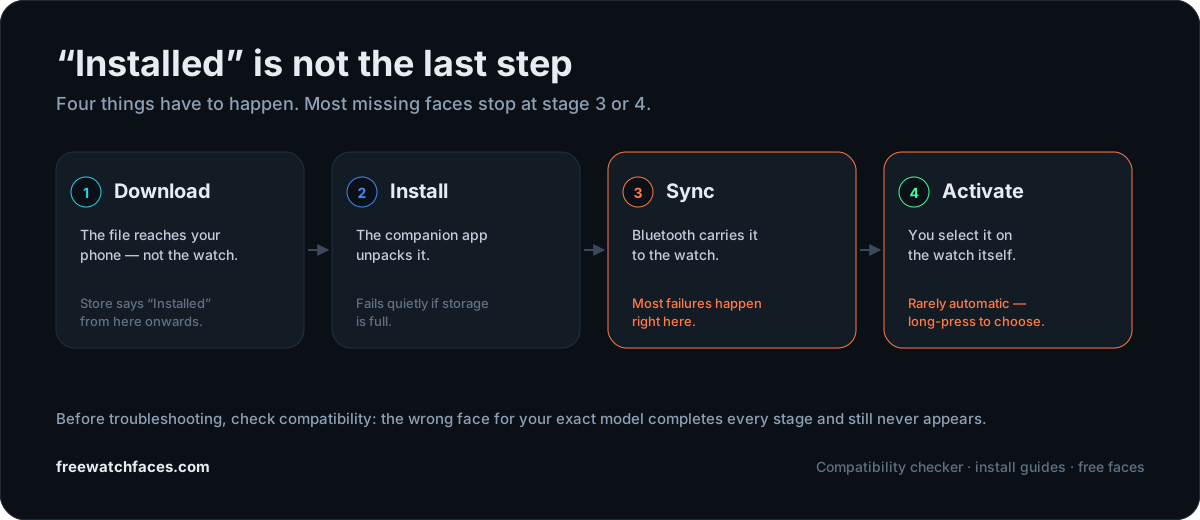
Installing a watch face involves four separate stages, and the store reports success at stage two. If stage three or four never completes, everything still looks fine on your phone.
| Stage | What happens | What goes wrong |
|---|---|---|
| 1. Download | The file reaches your phone | Partial download on a weak connection |
| 2. Install | The companion app unpacks it | Fails silently when storage is full |
| 3. Sync | Bluetooth carries it to the watch | Interrupted sync — the most common failure |
| 4. Activate | You select it on the watch | Never automatic on most platforms |
Garmin: why your watch face does not appear
Garmin is reliable but widely misunderstood, because installation spans four systems: the Connect IQ store, Garmin Connect, the Bluetooth sync and the watch’s own storage. If any one of them stalls, the face never arrives even though the app reports success.
Connect IQ says “installed” but the watch disagrees
Connect IQ downloads the face to your phone first. Garmin Connect then syncs it to the watch. Interrupt that sync — even briefly — and the process stops halfway while the app still shows it as finished.
Rather than uninstalling everything, force the sync to complete:
- 1.Open Garmin Connect.
- 2.Trigger a manual sync.
- 3.Keep Bluetooth on.
- 4.Leave the app open and in the foreground.
- 5.Wait until the sync reaches 100% — closing it early is the usual mistake.
The face is installed but not selected
Garmin does not activate a new face automatically. Long-press the current face, choose Watch Faces, and scroll the list — a surprising number of people find it was there all along.
The model is not supported
A face built for a Fenix 8 may not support a Forerunner 255, even though both run Garmin software. Before assuming it is broken, check the supported model list, the minimum firmware version and the required Connect IQ version. Our Garmin install guide walks through the full flow.
Amazfit and Zepp
Amazfit offers strong battery life at a low price, but one of the most fragmented ecosystems: different models rely on Zepp, Zepp Life, third-party watch-face apps or QR-based installs.
The result is that Amazfit frequently rejects an incompatible face silently — no error, nothing appears. The usual causes are the wrong resolution, the wrong model, unsupported firmware, a regional restriction or a failed sync.
Work through these before reinstalling:
- Is the face built for your specific Amazfit model?
- Does your firmware version support custom faces?
- Has Zepp finished syncing completely?
- Have you restarted both the phone and the watch?
Step-by-step detail is in the Amazfit install guide.
Huawei: usually the wrong ecosystem
Huawei does not run Wear OS, and this is where most Huawei installs go wrong. People download a face built for Google’s Wear OS, install it, and nothing happens — because Huawei cannot run it. The reverse is equally true: Huawei faces will not install on a Galaxy Watch or Pixel Watch.
If you searched “I installed the watch face but nothing happened”, the answer for Huawei is usually that the face was never built for your watch. Compatibility matters far more than appearance.
Wear OS and Galaxy Watch
On Wear OS the classic mistake is installing to the phone instead of the watch. Reopen the Play Store listing and confirm it shows as installed on the watch, then long-press the current face to select it.
Galaxy Watch has a few quirks of its own — Google account mismatches and Galaxy Wearable sync in particular — covered in Galaxy Watch face not installing or syncing?
Advanced troubleshooting checklist
Work through these in order before considering a reset.
- 1.Restart the watch. This forces the system to reload installed faces, the launcher cache and the sync queue.
- 2.Restart the phone. Companion apps keep background services running that a restart clears.
- 3.Check storage. Delete unused faces, old apps, offline music and downloaded maps.
- 4.Verify compatibility. Is the face actually built for your exact watch? Skipping this question causes more failures than anything else.
- 5.Check your connection. A download can appear complete when only part of the package arrived. Switch between Wi-Fi, mobile data and Bluetooth, then retry.
- 6.Update everything — watch software, companion app, Google Play, Garmin Connect, Galaxy Wearable, Zepp, Huawei Health.
The compatibility checklist to run before you download
Five questions, two minutes, and most of this article becomes unnecessary.
- 1.Which watch do I own? Not the brand — the exact model.
- 2.Which operating system does it run? watchOS, Wear OS, Garmin OS, HarmonyOS or Zepp OS.
- 3.Does the face support my model specifically? Not “Galaxy Watch” but Galaxy Watch 7, Watch Ultra or Watch FE — compatibility differs between them.
- 4.Does it need another app? Some faces require Facer, WatchMaker, TimeFlik, Clockology or Connect IQ to appear at all.
- 5.Is it actually a watch face? Some downloads are wallpapers, screenshots or promotional images, not installable faces.
Myths worth dropping
| Myth | Reality |
|---|---|
| A successful install means the face appears | Most platforms require manual activation |
| If the app installed, all its faces will work | Faces within one app support different models |
| Restarting is useless | It reloads launcher services and the sync queue |
| A factory reset is the best fix | It should be the last resort, not the first move |
When a factory reset is actually justified
Only when the problem is clearly systemic rather than specific to one face:
- Syncing never completes, with any face
- Multiple faces fail in the same way
- The watch software has become unstable
- Bluetooth disconnects continually
- Updates repeatedly fail
Otherwise a reset costs you an afternoon of re-pairing and re-installing to fix something a manual sync would have solved.
What this usually comes down to
Across smartwatch communities the same pattern repeats: most people do not have an installation problem, they have a compatibility problem. The wrong face, for the wrong operating system, through the wrong app, on the wrong model. Installation completes — the watch simply never receives anything it can use.
So check compatibility first and install second. Five minutes of checking saves hours of troubleshooting.
Understanding the difference between downloading, installing, syncing and activating solves the large majority of watch-face problems. Most “missing” faces are not lost at all — they are waiting to sync, waiting to be selected, or waiting for a watch they were never built for.
Every face in our catalogue lists the watches and operating systems it supports, its install method, its expected battery impact and a link to the right step-by-step guide — because the best watch face is not the one that looks best, it is the one that works on your watch. If you are starting fresh, the full install guide covers every platform.
Frequently asked questions
- Why is my watch face installed but not visible?
- Most commonly because it has not been activated, has not finished syncing to the watch, or is not compatible with your exact smartwatch model.
- Why does Google Play say installed but nothing appears?
- Usually because the companion app installed on the phone while the watch component never reached the smartwatch. Reopen the listing and confirm the watch is the install target.
- Can storage stop watch faces from appearing?
- Yes. Many smartwatches have limited storage, and when it fills up new watch faces can fail silently with no error message.
- Why did my watch face disappear after an update?
- Software updates sometimes remove incompatible faces or require the developer to update them for the new platform version.
- Can the wrong Google account cause installation to fail?
- Yes. Your phone and smartwatch should use the same Google account, or the install will not reach the watch.
- Should I reinstall everything?
- Not immediately. Restart, force a sync, check compatibility and check storage first. Reinstalling is only worth it once those are ruled out.
- Can an incompatible watch face damage my smartwatch?
- No. An incompatible face either refuses to install or simply never appears.
- Why does one watch face install but another does not?
- Different developers support different devices, operating systems and screen resolutions, so support varies from face to face even within the same app.